
Groups in Civillo
Groups are available within Civillo so that data can easily be shared among members of a project. In some cases, you will have many members of a project that need access to some data but not to all of it.
Create a group
Section titled “Create a group”To create and manage groups, follow the steps below.
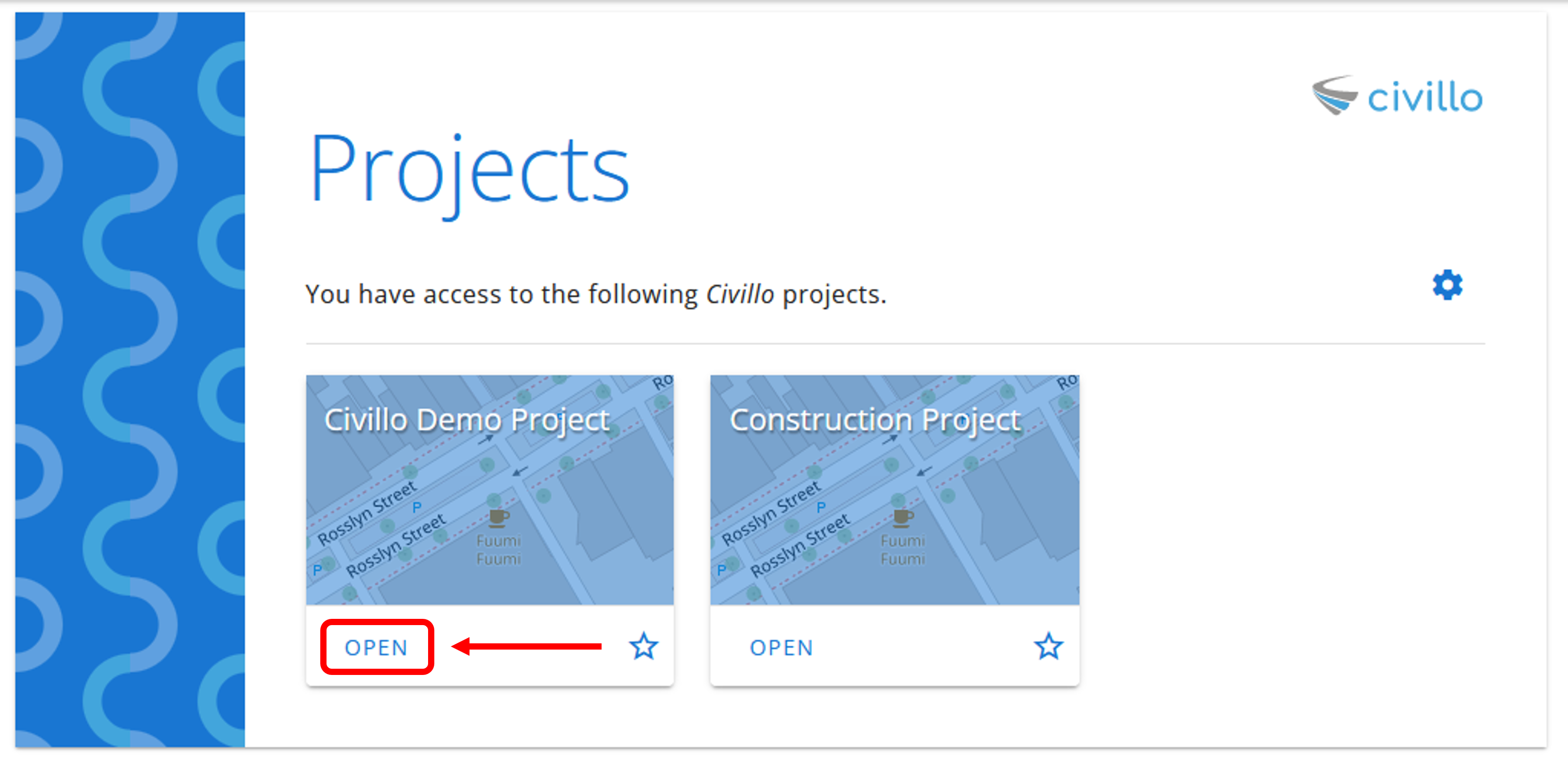
- Open your project.
- In the navigation bar, click Settings. If you are not an administrator, this link has a different name; see The navigation bar.
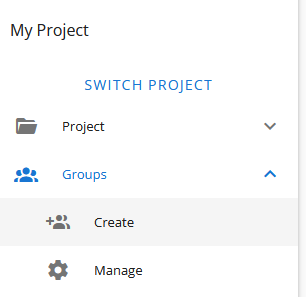
- In the left sidebar, under your project’s name, click Groups and then Create.
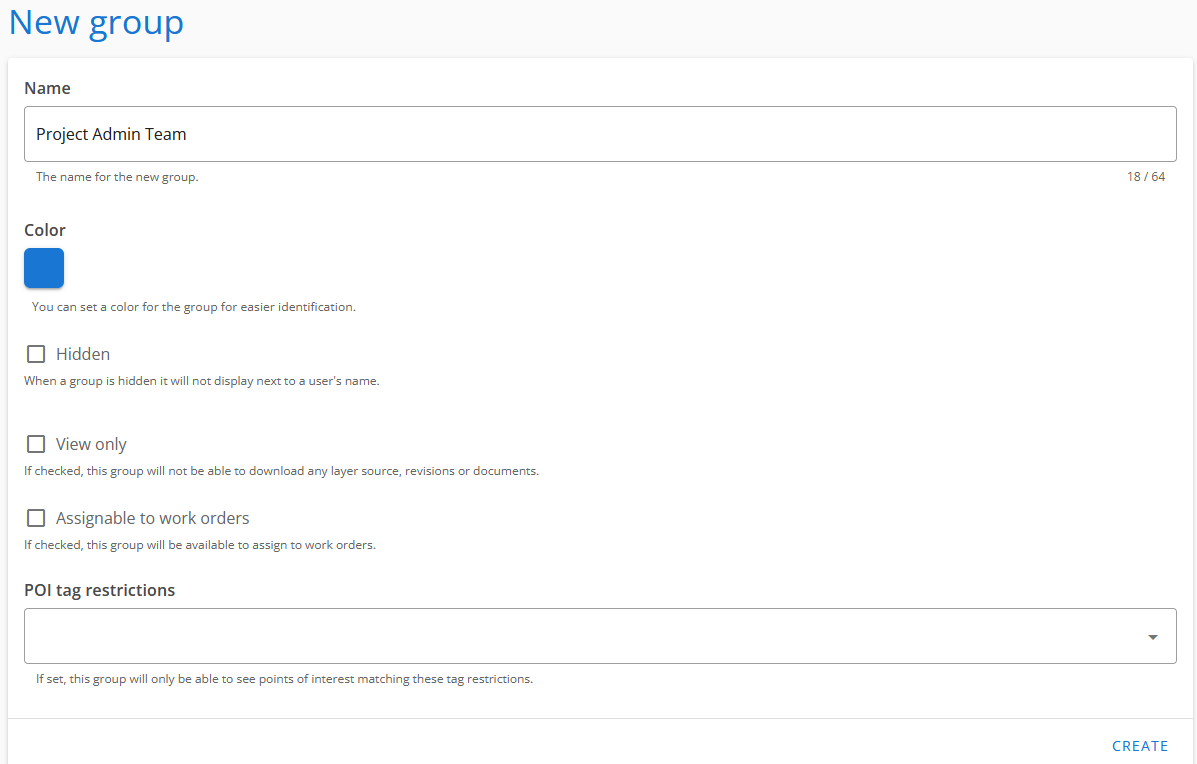
- Fill out the name and description of your group, scroll to the bottom then click Create. As shown below you can assign the following additional settings to the new group:
- Color: For ease of visualization.
- Hidden: Group will not display next to a user’s name.
- Assignable to work orders: Group will be available to assign to work orders.
- Manageable by users with the group management role: Group will be visible and updateable by all users with the Group management group role. Otherwise, only admins will be able to see and manage this group.
- POI tag restrictions: Group will only be able to see points of interest with tags matching the tags selected here. Only tags that already exist in the project can be selected here; see Tags to manage them.
Copy an existing group
Section titled “Copy an existing group”Instead of building a group from scratch, you can base a new group on one that already exists. This is useful when you need a group that is similar to an existing one, for example having the same users and layers but different group roles.
- Open the Create group page as described in Create a group.
- Under Copy from group, select the group you want to copy. Only groups you are authorized to manage are listed.
- The form is filled in with the selected group’s properties, except its name. Enter a name for the new group and change any of the copied properties if desired.
- Choose what else to copy. Both options are checked by default:
- Copy users: Every member of the selected group is added to the new group.
- Copy layers: The new group is given access to the same layers as the selected group.
- Click Create. A message confirms how many users and layers were copied, with a link to open the new group in Manage groups.
A few things to be aware of when copying a group:
- Changes which are made to the original group after the new group was created are not applied to the new group (and vice-versa).
- Users whose access to the project has expired are not copied, so the number of users in the new group may be lower than the number of users in the original group.
- Properties you are not authorized to set yourself, such as group roles if you are not a project administrator, are not copied.
Manage a group
Section titled “Manage a group”- Again, in the left sidebar, click Groups and then Manage groups. Your created group will now appear in the drop-down list. Select the group you wish to manage.
- Here you can delete this group, change the name of the groups, select and deselect the layers that will be accessible to the members of this group and add and remove any users to this group.
- If the group was created as a copy of another group, the group it was copied from is shown under Copied from. This is not shown if that group has since been deleted, or if it is a group you are not authorized to manage.
- Once changes have been made, click Save Changes.

Group roles
Section titled “Group roles”Some Civillo features are only available to users if they are a member of a group that has a specific group role.
By default, a newly created group has no roles.
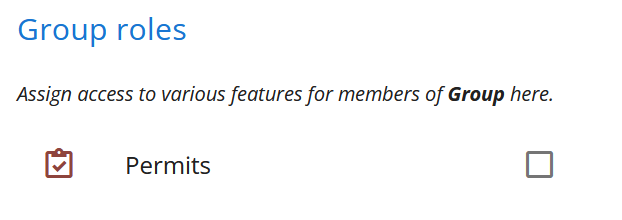
Roles can be assigned to a group either at the creation stage, or when managing an existing group.
Layer creation and editing role
Section titled “Layer creation and editing role”When a group has the layer creation and editing role, any members of the group will have access to the layer edit and layer create/revise pages in the administration section. As with permits, users must be in at least one such group for access. This allows non-admins to be granted access to this otherwise administrator-only functionality without being able to access the rest of the administration section.
Layer directory structure role
Section titled “Layer directory structure role”When a group has the layer directory structure role, any members of the group will have access to the layer directory structure page in the administration section. On this page these group members will be able to create, edit and delete directories (but not layers) as well as assign layers and unassign layers from directories.
Group management role
Section titled “Group management role”Users with this role have access to the manage and create groups pages in the administration section. Unless they are also project administrators, they will only be able to see groups which have Manageable by users with the group management role enabled. Note that any groups created by non-admin users with this role will automatically have this enabled.
User management role
Section titled “User management role”Users with this role have access to the user invite/remove page where they can view all project users, invite new users and remove existing users. They cannot access the full user management page that handles role assignments and promotions.
Chainage alignment management role
Section titled “Chainage alignment management role”have access to the chainage alignment page of the administration section. From here they can view, create, edit and delete chainage alignments in the project.
Work order management role
Section titled “Work order management role”Users with this role have the ability to, for all work orders (even those they have not created):
- Add optional fields
- Change assignments of users and groups
- Set status, including to completed
- Delete events
- Add and delete tags
Downloading layer source role
Section titled “Downloading layer source role”Users with this role are able to download layer sources and revisions. A user must be in a group with the role in order to do so.
Downloading documents role
Section titled “Downloading documents role”Users with this role are able to download documents. A user must be in a group with the role in order to do so.
Permits role
Section titled “Permits role”When a group has the permits role, any members of the group will have access to the permits module. Users must be in at least one group with the permits role to have access to the permits module.
Permits overview and management role
Section titled “Permits overview and management role”Users with this role have access to the project admin permit overview and management pages as well as the actions able to be performed on permits from those pages. They are also granted access to permits on the map page and have the same permissions to perform operations there (e.g. revoking and cancelling permits) as project admins and permit controllers.
Note that, unlike project admins and permit controllers, they do not have access to the permit categories and templates pages. This role hereby provides another layer for scoping permit permissions.
Points of interest editing role
Section titled “Points of interest editing role”Users with this role are able to edit and delete all points of interest on their project’s map. Users lacking this role, meanwhile, are only able to edit and delete points of interest which they have created.
Tag management role
Section titled “Tag management role”Users with this role have access to the tags page of the administration section. From here they can create, rename, recolor, merge and delete the project’s tags, and set whether tag creation is restricted. See Tags.
Points of interest bulk upload/export role
Section titled “Points of interest bulk upload/export role”Users with this role have access to the points of interest page of the administration section. From here they can bulk upload and export points of interest in the project.