
# Passkeys
WARNING
Passkeys are not available to accounts for which access is restricted to single sign-on. In this case, your identity provider governs how you sign in.
A passkey is a sign-in credential that lives on your device (your laptop, phone, or password manager) and is unlocked with your fingerprint, your face, or your device PIN.
Nothing is typed and nothing is sent to us. Your device proves who you are by signing a one-time challenge, and the part of the passkey that matters never leaves it. Because your browser will only offer a passkey to the website it was created for, a passkey cannot be entered on a convincing fake site by mistake, and there is no code for anyone to talk you into reading out.
# Your password still works
Adding a passkey does not replace your password. Every Civillo account keeps one, and you can still sign in with it whenever you prefer.
This also means you are never locked out by losing a device. If the device holding your passkey is lost, broken or replaced, sign in with your password as usual, or reset it from the sign-in page if you have forgotten it. See Managing your account.
# Adding a passkey
You add passkeys from your profile page. A passkey belongs to the device or password manager you create it on, so add one on each device you regularly sign in from.
When signed in, in the navigation bar, click your avatar and then click your name. You can also follow this link (opens new window).
Navigate to the section titled Passkeys.
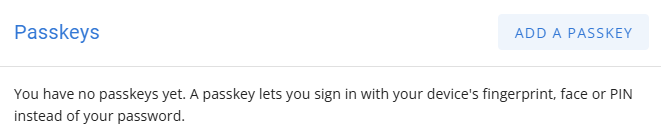
Click Add a passkey.
Civillo asks you to confirm it's you before your passkeys are changed. Enter your password, or use one of your existing passkeys. You are not asked again if you have confirmed recently.
TIP
If you have multi-factor authentication enabled, you will be asked for the code from your authenticator app as well.
Give the passkey a name that tells you which device it is, such as "Work laptop", then click Continue.
Your device takes over and asks you to confirm with your fingerprint, your face, Windows Hello or your device PIN. Approve the prompt.
The new passkey appears in the Passkeys list, and we send you an email confirming it was added.
# Signing in with a passkey
Click Sign In with a passkey, below the or separator under the email field. This option appears only in browsers that support passkeys.
Your browser shows the passkeys available for Civillo. Choose one and unlock it with your fingerprint, your face, Windows Hello or your device PIN.
You are signed in. There is no email address or password to type, and you are not asked for a code from your authenticator app.
TIP
If your organization requires multi-factor authentication, you still need separate MFA set up on your account. See the MFA setup guide.
# Managing your passkeys
The Passkeys section of your profile lists every passkey on your account, with the name you gave it, where it is held if we recognize the provider (Windows Hello, iCloud Keychain, 1Password and so on), when it was added, and when it was last used.
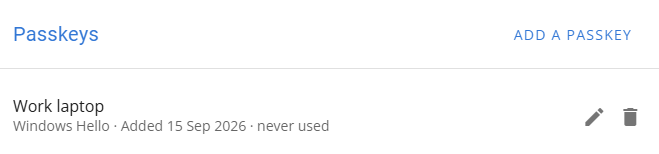
To rename a passkey, click the  edit icon, enter a new name and click Save.
Adding, renaming and removing a passkey all ask you to confirm it's you first. That confirmation then covers any further changes you make for the next ten minutes or until you refresh the page; after that you will be asked again.
# Removing a passkey
Remove a passkey when you no longer use the device it is on, or when you no longer recognize it.
In the Passkeys section of your profile, click the
 delete icon beside the passkey.
Confirm that you want to remove it. The passkey is named in the confirmation so you can be sure you are removing the right one.
The passkey can no longer be used to sign in, and we send you an email confirming it was removed.
TIP
Your browser, device or password manager keeps its own copy of the passkey, so it may keep offering it as an option at sign-in until you delete it there too. The offered passkey will no longer work.
Where you delete it depends on where your passkey is stored. The Passkeys section of your profile names the provider if you are not sure. Below are links to passkey documentation for popular providers:
Removing every passkey is fine. You continue to sign in with your password as before.
# Emails about your passkeys
We email you whenever a passkey is added to or removed from your account. These are security notifications and cannot be turned off.
If you get one you were not expecting, someone else may have access to your account. Remove any passkeys you do not recognize, change your password immediately, and contact us at support@civillo.com.
# When passkeys are not available
Passkeys need a browser that supports them. In an older browser the Passkeys section tells you that passkeys cannot be used, and the Sign In with a passkey option does not appear on the sign-in page. You can still sign in with your password.
If your organization requires you to sign in through single sign-on, the Passkeys section does not appear at all. A Civillo passkey would sidestep your organization's identity provider, so it is not offered.